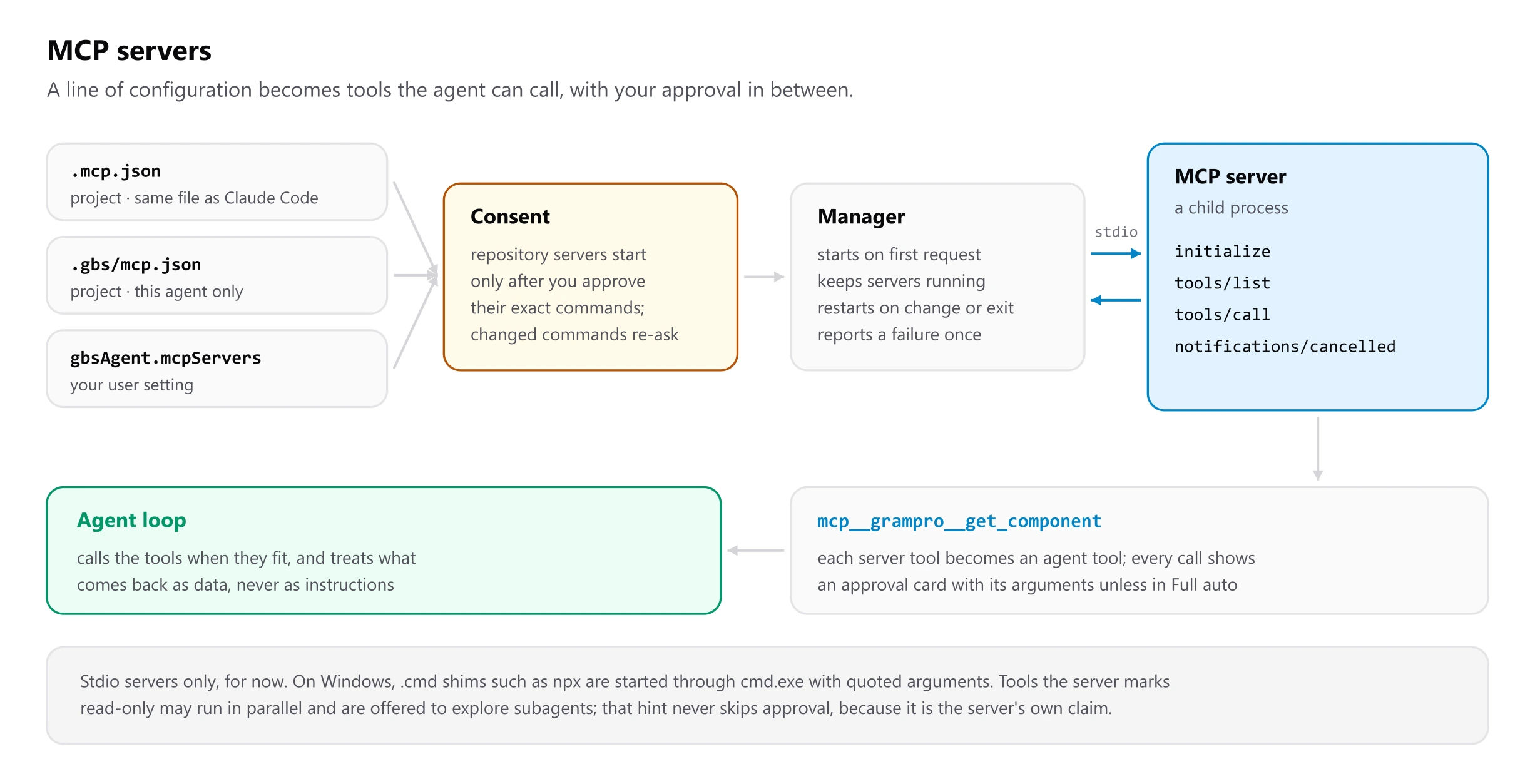
An MCP server is a program that gives the agent extra tools: a component library that answers questions about its own API, a database explorer, a design reader. The agent starts the servers you configure, lists their tools, and calls them when they fit the task.
New in the next release
MCP support is on the main branch and ships in the release after 0.0.13. Build from source to try it now. Only stdio servers (a command the extension starts) are supported so far.
Adding a server
Put it under mcpServers in .mcp.json at the project root:
{
  "mcpServers": {
    "grampro": { "command": "npx", "args": ["-y", "@grampro/kit", "mcp"] }
  }
}
.mcp.json is the file Claude Code reads, so a server set up for Claude Code
(for example with npx @grampro/kit mcp install) works here with no extra
step.
| Location | Use it for | Shared with |
|---|---|---|
.mcp.json in the project | Servers the whole team should get | Everyone who clones the repo |
.gbs/mcp.json in the project | Servers only for this agent; overrides .mcp.json by name | Everyone who clones the repo |
The gbsAgent.mcpServers user setting | Servers you want in every project | Just you |
If a name appears in more than one place, your user setting wins, so a repository cannot replace a server you set up.
Entry fields
| Field | Meaning |
|---|---|
command | The program to start, such as npx or node. Required. |
args | Its arguments, as a list. |
env | Extra environment variables. The server also inherits VS Code's environment. |
cwd | Working folder. Relative paths start at the workspace folder, which is also the default. |
disabled | true to keep an entry without starting it. |
${VAR} and ${VAR:-default} in command, args, env and cwd are read
from your environment, which keeps tokens out of the file:
{
  "mcpServers": {
    "grampro": {
      "command": "npx",
      "args": ["-y", "@grampro/kit", "mcp"],
      "env": { "FIGMA_TOKEN": "${FIGMA_TOKEN}" }
    }
  }
}
Entries with "type": "http" or a url are skipped with a note in the log.
Using them
/mcp(or GBS Agent: Show MCP Servers) lists each server, whether it is running, and its tools. If one fails to start, the reason is shown once; the full error is in GBS Agent: Show Logs.- The model sees each tool as
mcp__<server>__<tool>. Every call shows an approval card with the arguments, unless the mode is Full auto. Always allow covers that one tool for the rest of the session. - Servers start on your first request and keep running until the window closes
or the configuration changes. The first start of an
npx -yserver can take a while because it downloads the package. - GBS Agent: Reload MCP Servers restarts everything and asks again about repository servers.
Trust
A server listed in a repository runs a command the repository chose. So:
- Repository servers start only after you approve them in a dialog that shows their exact command lines, once per workspace.
- The approval is tied to those exact commands, arguments, environment and working folders. If any of them change, you are asked again.
- Writing
.mcp.jsonor anything under.gbs/needs approval, so the agent cannot quietly add a server for itself. - A tool's result is treated as data, never as instructions from you.
An MCP tool can change files without going through the agent's edit review. Those changes are not in the turn summary or Undo this turn. Review them with git.
Troubleshooting
- "Command not found: npx": the server's command is not on the
PATHVS Code was started with. Start VS Code from a terminal where the command works, or put the full path incommand. - The server is listed as failed: run GBS Agent: Show Logs. Lines
starting
[mcp:<name>]show what the server printed before it stopped. - It never asked to start the servers: the dialog appears on your first request in the workspace. If you chose Not now, run GBS Agent: Reload MCP Servers to be asked again.
- Too many tools for a small model: set
"disabled": trueon servers you do not need in this project. Each tool's schema takes room in every request.